
Don't be a Fish
September 10, 2025Recognize and avoid "phishing" attacks on yourself and employees.
January 15, 2026 updated July 21, 2026We explain the difference between a Recovery Drive and a Windows Installation Drive, and how to use them to recover a broken PC.
The Recovery Drive is specific to the computer it was created on and includes manufacturer-specific files like device drivers. A Windows Installation Drive contains only standard drivers. Both contain re-installable copies of Windows files. Both will "repair" or reinstall Windows, as long as they can access the hard drive.
Can I use a Recovery Drive from one PC on another PC? Probably, if they are the same manufacturer and product line. Otherwise it's likely one PC requires device drivers not needed on the other PC, and so a recovery or repair is unsuccessful if using a mismatched Recovery Disk.
Can you give me an example? Sure. We had a family HP laptop that failed to reboot ("Windows has found a problem and it could not be repaired.") So we tried a "recovery drive" made using a Lenovo machine. This took about 50 minutes to write the USB stick. When booted on the HP it was not able to "repair" the hard drive.
The answer was to use Microsoft Media Creation tool (a download) to create a US-language Windows-11 for 64-bit.
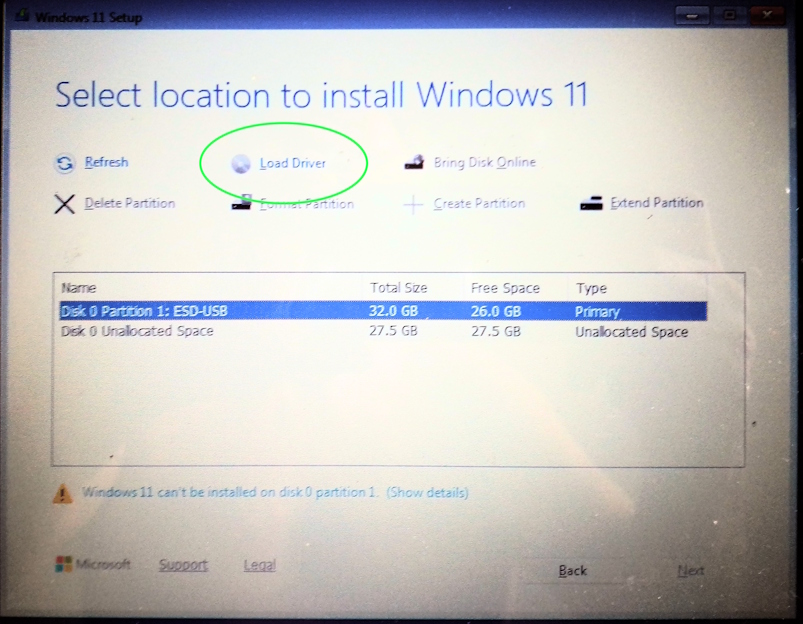
That too also failed to "repair" the hard drive, until we realized it was missing the hard drive device driver.
Here is the fix, specific to HP consumer laptops, but you can revise according to your make and model:
After Windows is reinstalled, it asks these questions:
At this point you can reboot and you have a working Windows environment. Your OneDrive data is available but no apps.
Reinstall your apps and you are done
All the above is too complicated. This is why we recommmend a Windows Recovery Drive.
How do I Create a Recovery Drive? Run the recoverydrive.exe program which is part of Windows (no download required). Have a 32GB or 64GB USB stick available, but don't plug it in yet.
Just follow instructions. It takes a while (5 minutes) to ask for the USB stick. Insert the USB stick when asked, and not before. After a minute, it will ask you to confirm the USB stick (drive "D").
After an hour or so, it will be ready. Label it (or a use a piece of paper) with your make and model, put both into a plastic baggy, and you are done.
It will be ready for you the next time you see "Windows has found a problem and couldn't be repaired".
If you see the dreaded "Windows has found a problem and couldn't be repaired" message, then boot the Recovery Drive by inserting into a USB port, restart the machine and press ESC continuously until you get a BIOS or Boot Selection prompt. (The ESC key might be incorrect if have HP or Dell machines. Check your instructions, or just try F12 or space until it works.)
Select the USB drive or whatever is not a "network" or "hard drive".
A blue screen will appear, asking you to Install or Repair. Choose your desired process: repair is best to try first.
If you choose to Install, then Windows-11 will be reinstalled on your hard drive, replacing everything on it including your files. As shown above, Windows will ask some questions about privacy and your email account which you login with.
There are a few reasons why it might not boot correctly:
There are a few reasons why it might not be able to repair or even reinstall Windows.
Subscribe to Cyber StepTracker.com for comprehensive instructions, training, and guidelines on reducing your business risk by improving your cyber security!.
That is all.
Latest Articles
September 10, 2025Recognize and avoid "phishing" attacks on yourself and employees.
September 10, 2025Use your fingerprints to unlock your phone, not a code or face.
October 14, 2025Knowing how passwords are stored helps motivate you to make and keep good passwords.
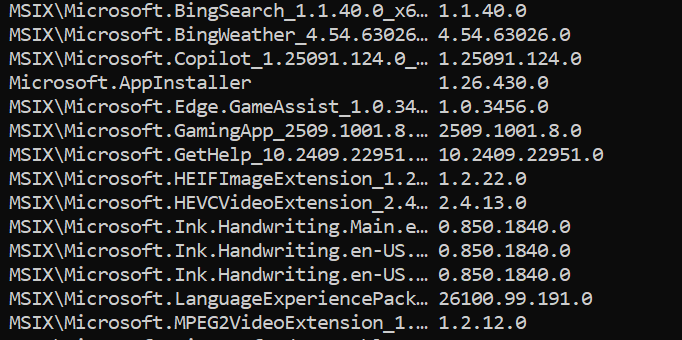
September 24, 2025 updated January 14, 2026Six different ways to list the software apps installed on your computer.
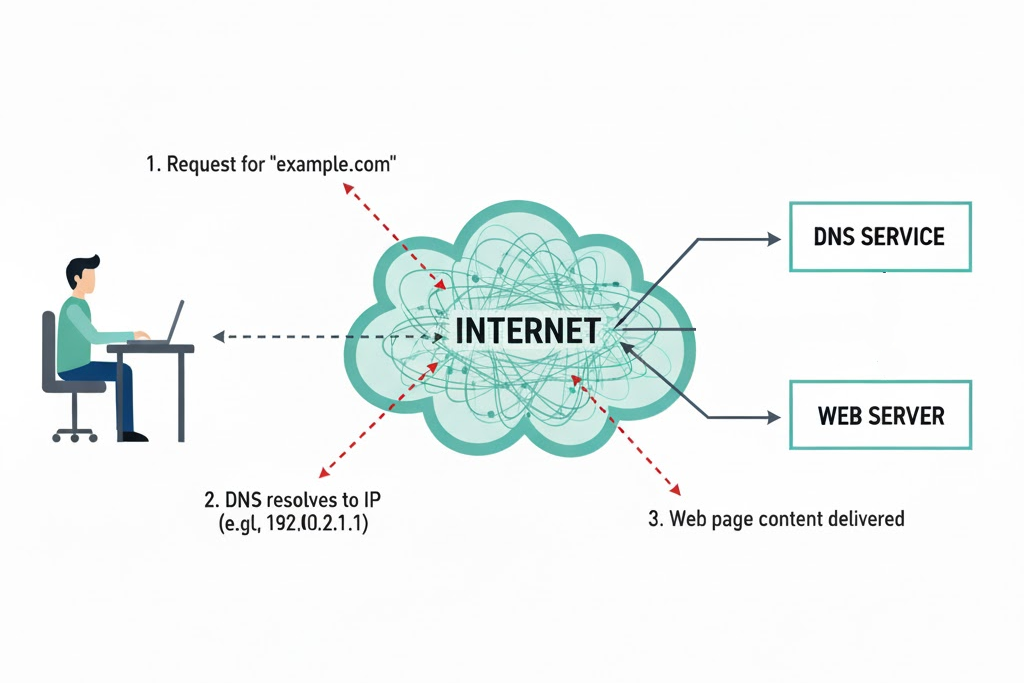
October 27, 2025 updated July 19, 2026Choose Safe DNS for Your Computer


November 19, 2025Well, could they? What are the protections on your ChatGPT sessions?
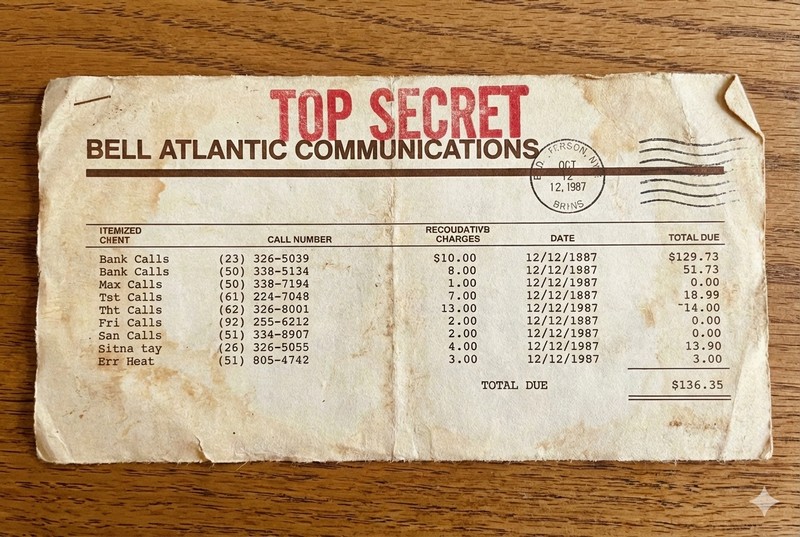
January 14, 2026 updated July 19, 2026Why should my telephone bill be secret? Because your customer and supplier contacts are valuable.
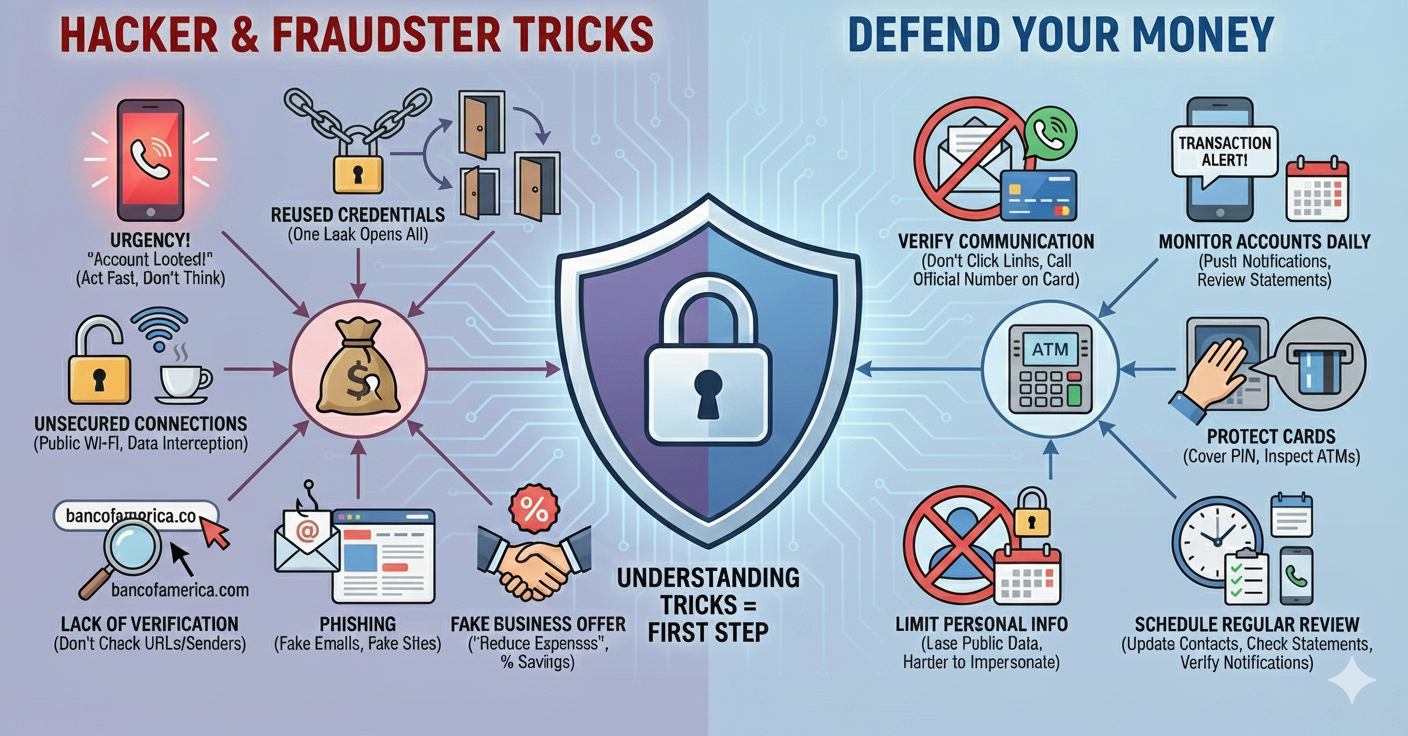
January 8, 2026How do I Defend My Money as a Small Business.
January 15, 2026 updated July 21, 2026We explain the difference between a Recovery Drive and a Windows Installation Drive, and how to use them to recover a broken PC.
February 2, 2026What are three different ways to backup my Windows computer?
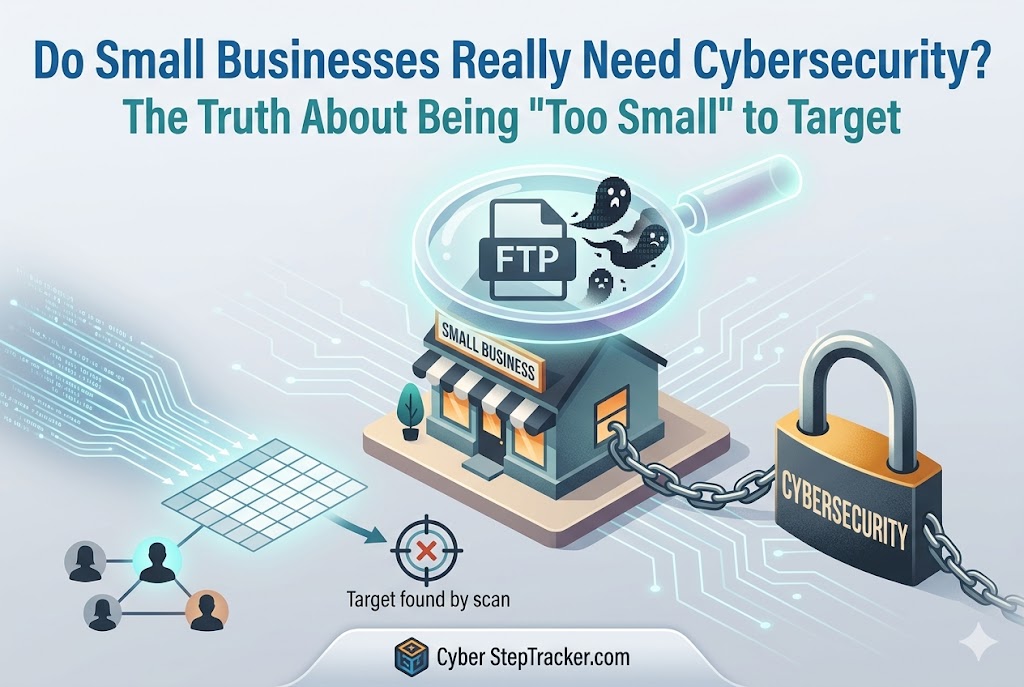
May 15, 2026 updated July 19, 2026We’re just a small shop. Why would a hacker care about us? Because they attack everybody.

May 25, 2026Government and commercially published guides are free. Why use us?
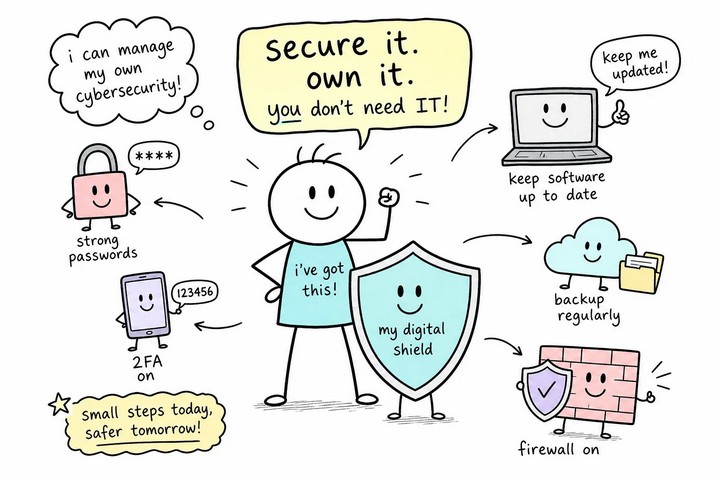
June 20, 2026You can manage cyber security yourself without a computer science degree or a consultant on retainer.
June 30, 2026 updated July 19, 2026When A Cyber Attack Strikes, What Are My Chances Of Recovery?

August 4, 2026With so many password managers, what are the best ones?

August 27, 2026If you need a low-cost solution for cyber security, here is your answer.